
Turn a long video into short vertical clips by following a repeatable workflow, choosing an editing route that fits your footage and routing source-specific material to the specialist guide that matches it. This article is the general starting point. It stays tool-neutral and does not promise a set number of clips, a time saving or any product result.
A good Short is a bounded moment: a first-time viewer should understand what is happening, what changes and why it matters, without watching the rest of the source. Before you cut anything, decide what the clip is for, choose how you will edit it and bound the moment you want to keep.
The core workflow
Work through this sequence for each source:
- Gather and inspect the source material, including the recording, transcript and any on-screen slides or interface you need to understand.
- Choose an editing route that fits the footage, its privacy and the control you need.
- Find candidate moments without targeting a clip quota.
- Bound each candidate with the clip scope card.
- Reframe for vertical, repair the opening and ending, and correct captions.
- Export for the intended platform and inspect the actual uploaded draft.
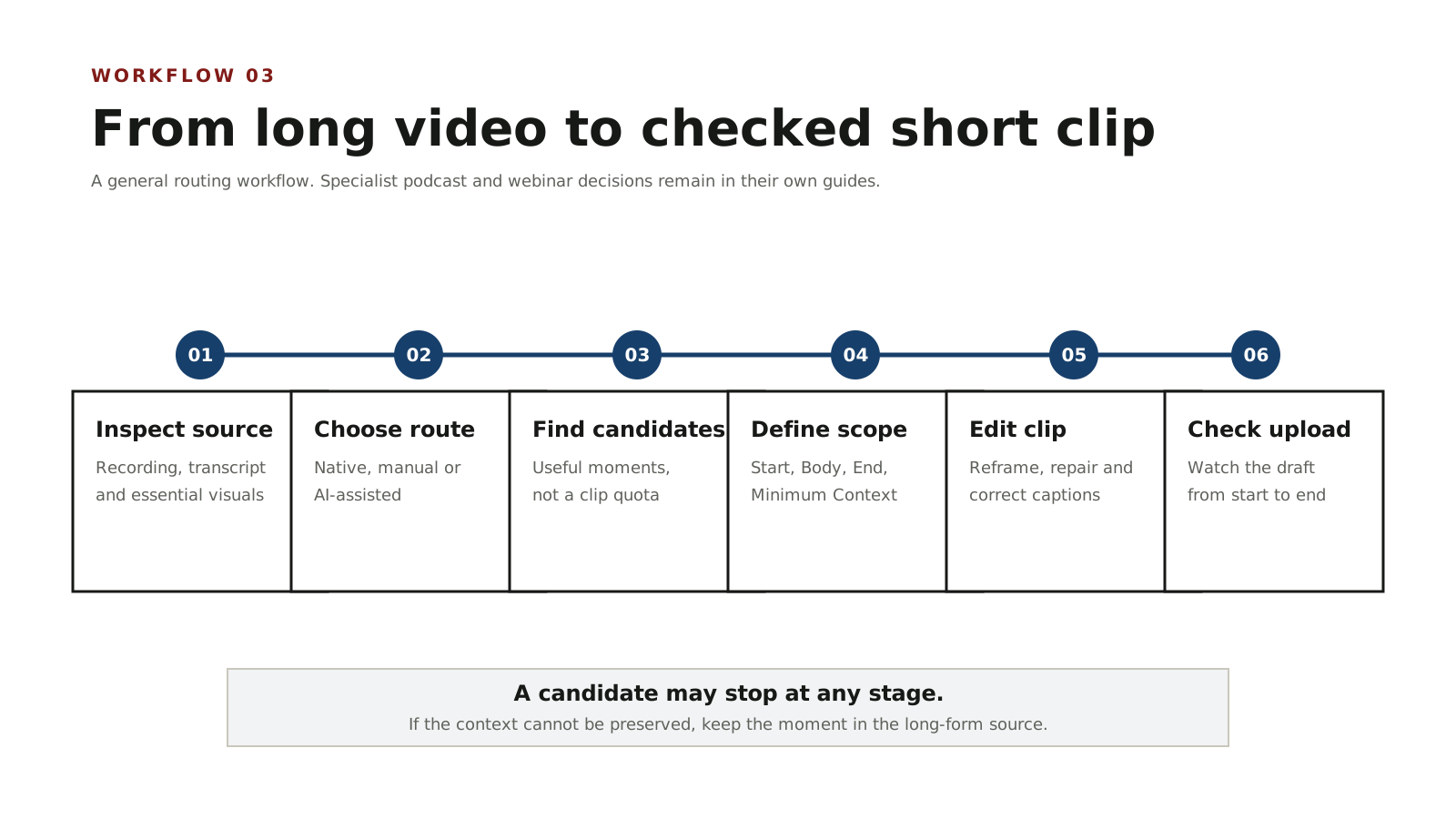
Do not force every moment through every stage. If a moment cannot be understood outside the full video without changing its meaning, keep it in the long form.
Choose a route: native editor, manual editor or AI-assisted clipper
There is no best route for everyone. The right choice depends on where the source lives, how sensitive it is, how much control you need and how much review you are willing to do.
| Route | Good when | Needs caution when |
|---|---|---|
| Native platform editor | The source is on the same platform and you want a quick, simple export | It offers limited control over reframing and captions |
| General-purpose manual editor | You want precise control over cuts, framing and captions | It takes longer and you must rebuild captions and layouts yourself |
| AI-assisted clipper | You want automated highlights, captions and reframing drafts reviewed by you | You must still verify meaning, framing and captions before publishing |
The route is a workflow decision, not a product verdict. Within each route many tools exist. Article #3 makes no recommendation, and the neutral tool landscape is a separate resource for understanding what those tools do: /ai-video-repurposing-tools/.
Find candidate moments without chasing a clip quota
The number of usable clips is set by the source, not the other way round. A ten-hour lecture and a five-minute vlog are different problems. Start from useful moments rather than deciding in advance that you must produce a fixed number of Shorts from one video.
Look for moments that:
- name their subject;
- show the relevant visual;
- reach a clear result or conclusion; and
- can be understood without the surrounding video.
A dramatic or funny line is not automatically a good clip if it depends on context from elsewhere in the source.
Bound each clip with the clip scope card
Before editing, define the boundaries of every candidate. The clip scope card records four things.
| Field | What to record |
|---|---|
| Start | The trigger that begins the moment (a question, an action, a transition) |
| Body | The action or change visible on screen |
| End | The outcome, result or conclusion that resolves the moment |
| Minimum Context | The smallest thing a first-time viewer must be told or shown to understand the moment |
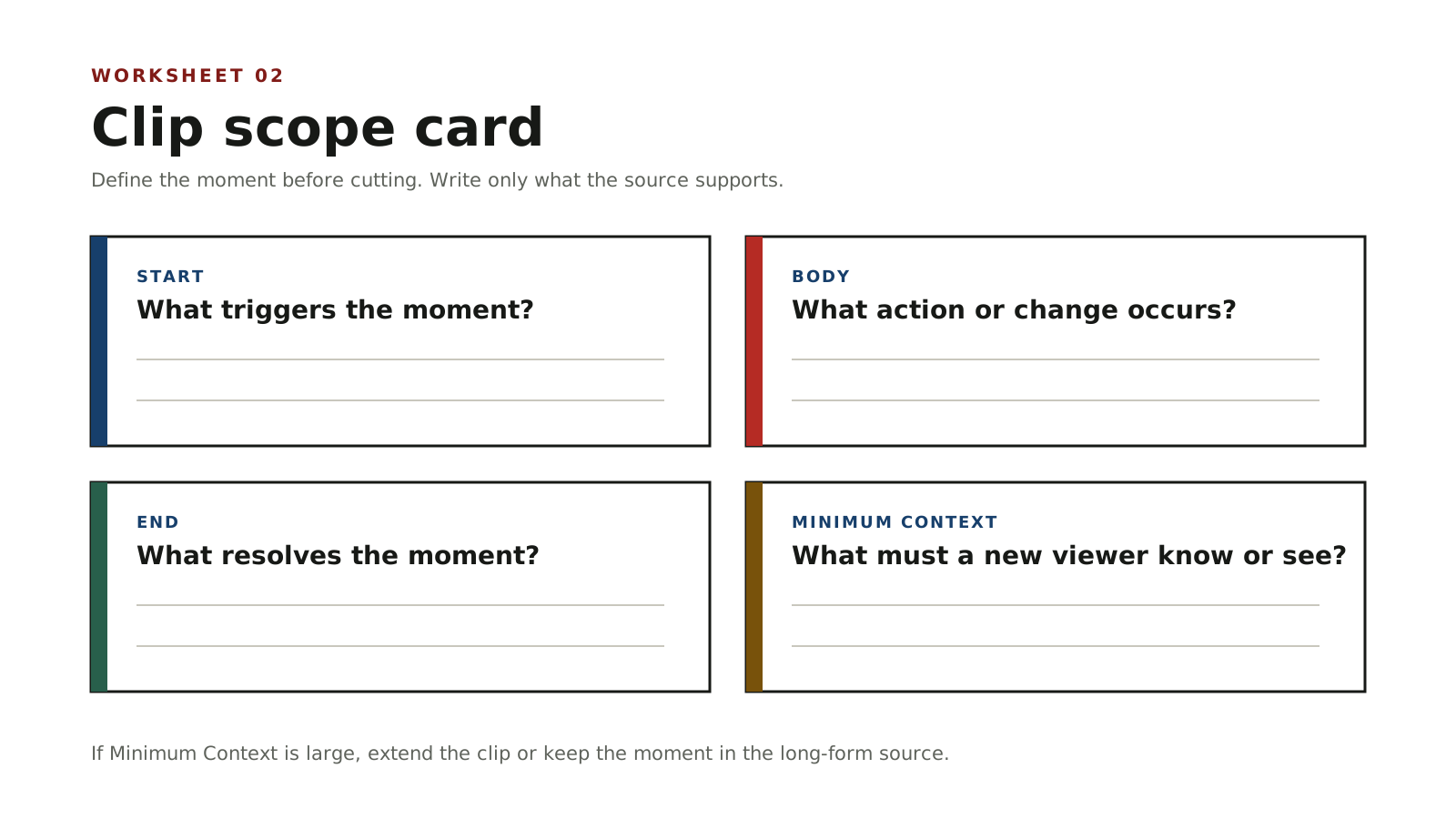
For a demonstration, the body is the action and the end is the visible result. For a talk, the start is the claim or question, the body is the supporting explanation and the end is the payoff. If the minimum context is large, either extend the clip to include it or reject the candidate.
This card is a boundary tool for clips in general. It is different from the complete-thought test for spoken claims and from the vertical-evidence-survival check for slides and screen shares, which are covered in the specialist guides.
Reframe for vertical without hiding what matters
A 9:16 frame cannot always show everything that a 16:9 source showed. Before you crop, decide what a viewer must still be able to see: the speaker, the chart, the interface state or the result. Keep that essential content in frame, and inspect the export at the approximate size at which it will be watched, not only on a large editing monitor.
If the important evidence cannot be read in the vertical frame and cannot be recreated faithfully, reject the candidate rather than publishing an illegible crop.
Repair the opening and ending
A Short should start close to the moment that matters and end when the point resolves.
For the opening:
- remove dead air, greetings and repeated setup if the meaning survives;
- start on the first meaningful word or action; and
- never add a stronger claim than the source supports.
For the ending:
- stop when the point is delivered; and
- do not add a conclusion, promise or call to action the speaker did not express.
Correct captions and on-screen text
Captions must be accurate, not merely present. TikTok documents auto-generated captions and creator captions that can be previewed and edited line by line.3
Correct meaning, not only spelling. Check names, numbers, acronyms, units and any words spoken while the visual changes state. A missing "not", an incorrect decimal or a swapped name can reverse the point. Also read every piece of on-screen text that survives the crop, because reframing can make small labels prominent.
Export and check the uploaded draft
Platform specifications are a delivery check, not a quality verdict. Ask the platform for its current requirements and then inspect the actual uploaded draft.
For YouTube, a creator can make a Short from their own public uploaded long-form video and can select up to 60 seconds in that built-in workflow.1 For Instagram, a Reel can use an aspect ratio between 1.91:1 and 9:16, with a minimum frame rate of 30 FPS and a minimum resolution of 720 pixels.2
For every destination, watch the uploaded draft from the first frame to the last. Confirm the opening identifies the subject, the correct speaker or visual is shown, captions read correctly, the ending delivers the result and no unsuitable on-screen detail is visible. Recheck the current official platform guidance before publication.
Route by source type: podcasts, webinars and general footage
The general workflow above covers footage that does not have a specialist dependency. Two source types need deeper treatment, and the routing below sends you to the guide that already covers them.
| Source type | What is different | Where to go |
|---|---|---|
| Dialogue-led (podcast, interview, talk) | The spoken claim must be complete and speaker identities kept clear | /guides/podcast-to-shorts/ |
| Presentation-led (webinar, lecture with slides, Q&A, screen share, demonstration) | Slides, questions and on-screen evidence can be lost in a vertical crop | /guides/webinar-to-shorts/ |
| General footage (vlog, tutorial without slides, gameplay, event) | Follow the general workflow in this article | Stay here |
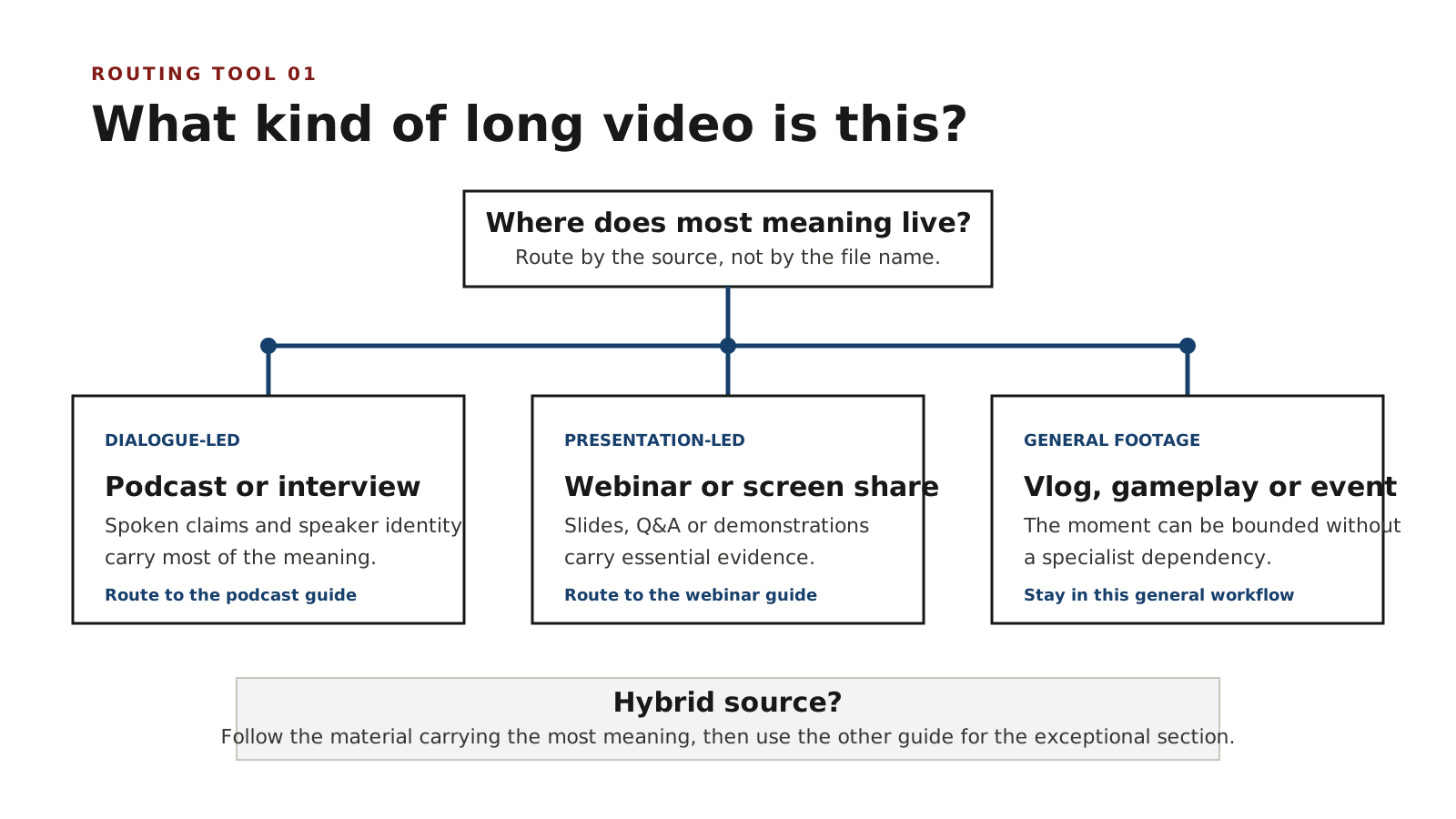
Watch for hybrid sources and route by what dominates. A webinar that is mostly dialogue may chiefly need the podcast guide; a podcast that includes a live screen share may need the webinar guide for the screen-heavy section. When in doubt, follow the material that carries the most meaning.
The evidence and quality-control philosophy behind this site is described in the methodology: /methodology/.
Long-video-to-Shorts checklist
- State the purpose of the clip in one sentence
- Choose a route that fits the source, privacy and control needed
- Review the transcript and timeline before cutting
- Mark candidate moments without targeting a clip quota
- Record the start, body, end and minimum context for each candidate
- Confirm the opening names the subject
- Keep essential visuals legible in the vertical frame
- End the clip when the point resolves
- Correct captions, names, numbers and on-screen text
- Inspect the uploaded draft at intended viewing size
- Route podcast and webinar sources to the matching specialist guide
- Recheck current official platform guidance
Read /methodology/ before evaluating software, and use /ai-video-repurposing-tools/ only as a neutral landscape, never as a recommendation.
Sources
Official platform pages were checked for this draft. Platform features can change, so recheck the current guidance at publication time.
- YouTube Help: Create YouTube Shorts from your videosChecked 20 September 2026. Official documentation for creating Shorts from a creator's own public long-form video.
- Instagram Help Centre: Reel size and aspect ratiosChecked 20 September 2026. Official aspect ratio, frame rate and resolution guidance.
- TikTok Support: Accessibility for creating videosChecked 20 September 2026. Official caption accessibility guidance; the stable URL redirects at runtime.
- Google Search Central: Article structured dataChecked 20 September 2026. Official BlogPosting structured-data guidance.